
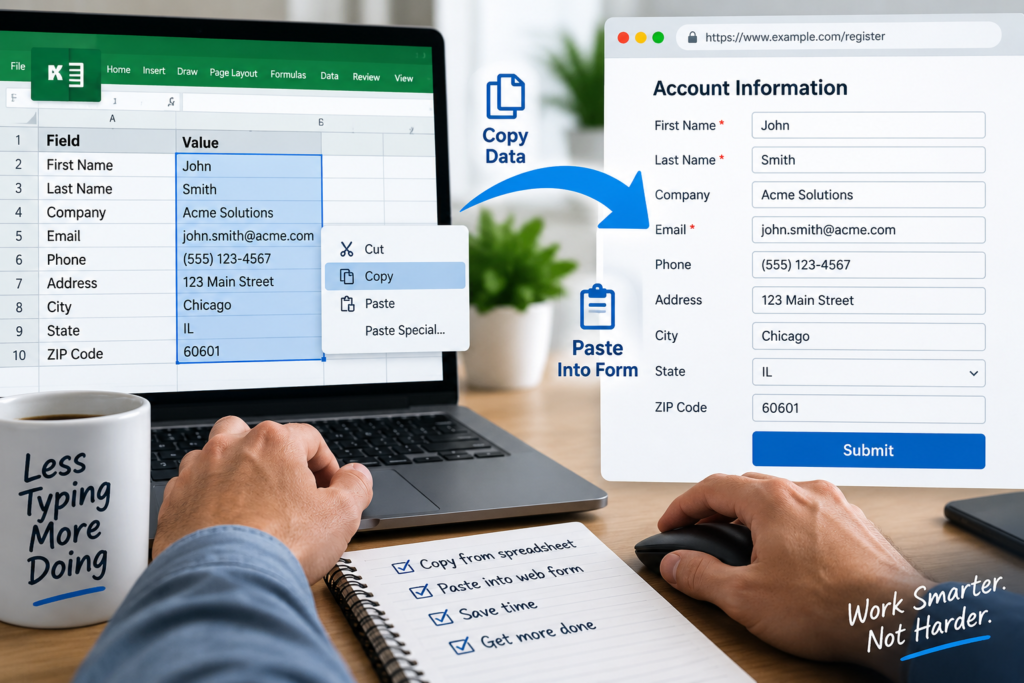
Copying data from Excel into a web form can be slow and error-prone when a page contains many fields. Instead of manually selecting each cell, copying it, switching to the browser, and pasting it into the correct box, you can automate the process. A well-designed workflow reads each Excel row, matches its columns to the corresponding fields on a webpage, fills in the values, and confirms that the submission is accurate.
Prepare Your Excel Data for Reliable Form Entry
Before automating anything, organize the Excel worksheet so that the first row contains clear column headers. For example, a sheet for customer registration might include columns such as First Name, Last Name, Email, Phone Number, Address, and Postal Code. These names make it easier to map spreadsheet data to the matching input fields in the web form.
Each row should represent one complete record that needs to be entered into the website. Remove unnecessary blank rows, duplicated entries, merged cells, and inconsistent formatting before running the automation. Dates, phone numbers, account IDs, and postal codes should be stored in a consistent format, especially when leading zeros need to be preserved.
It is also useful to add a status column, such as Processed, Submitted, or Error Message. After the automation fills out and submits a form, it can update this column to show whether the record was completed successfully. This prevents the same row from being submitted twice and gives you an easy way to review records that require manual attention.
Automate Copying Values Into Every Web Field
This is where MySolutionGuy can help. Every business uses a different combination of websites, software, and business processes, so there is rarely a one-size-fits-all solution. MySolutionGuy evaluates your existing workflow, the tools you already use, and your business goals to recommend the best approach. Sometimes the answer is AI. Sometimes it’s workflow automation, browser automation, API integration, or a simple process improvement. Whatever the recommendation, the goal is always the same, to deliver the right solution for your business. Once the best approach has been identified, MySolutionGuy can design, build, and support the solution from start to finish.
Browser automation tools can read data from Excel and enter it into web forms automatically. Popular options include Python with Selenium or Playwright, Microsoft Power Automate Desktop, UiPath, and browser-based automation extensions. The right choice depends on your technical experience, the website’s complexity, and whether the task needs to run regularly.
The automation should first open the target webpage and identify each form field by a reliable selector, such as its HTML id, name, label, or CSS selector. It can then read the value from the appropriate Excel column and place it into the matching field. For instance, the value from the Email column would be copied into the email input box, while the Address column would populate the address field. Dropdown menus, checkboxes, radio buttons, and date pickers may require separate actions instead of a simple paste operation.
A reliable workflow should include validation before submitting the form. The script or automation flow can check that required Excel values are not empty, confirm that email addresses and phone numbers follow expected formats, and verify that the webpage accepted the entered data. If a field is missing, the page changes unexpectedly, or a submission error occurs, the process should record the problem and move on safely rather than entering incorrect information.
Automating Excel-to-web-form entry can save significant time when the same type of information must be entered repeatedly. By preparing clean spreadsheet data, mapping columns carefully to web fields, and adding checks for errors and successful submissions, you can turn a repetitive copy-and-paste task into a faster, more accurate workflow.